How to Set Up Legal IPTV on Android TV in the UK: Step-by-Step Guide
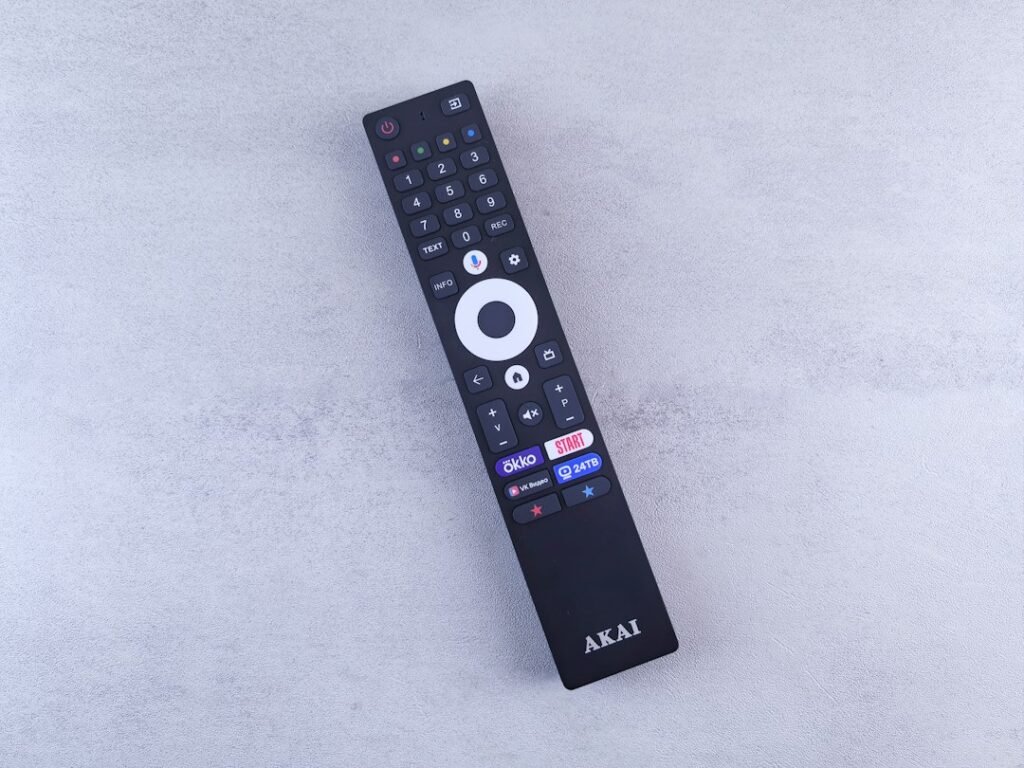
- Step 1: Check Your Internet Connection and Android TV Hardware
- Wired Network Links vs Wi-Fi
- Step 2: Pick and Install an IPTV Player Application
- Step 3: Load Your Subscription Playlist Credentials
- Entering M3U or Xtream Codes Details
- Step 4: Configure Programme Guides and Stream Decoders
- Fixing UK Timezone Offsets
- Adjusting Hardware Decoders
- Step 5: Optimise Buffer Settings to Prevent Stuttering
- Step 6: Customise Groups and Favourite Channels
- Testing Your Setup
- Upgrade Your Home Entertainment
Setting up IPTV on Android TV gives you one of the most flexible viewing setups available in the UK. Whether you use a Chromecast with Google TV, an Nvidia Shield, or a Sony smart TV powered by Android TV OS, the open nature of the platform makes configuration straightforward. You do not need technical expertise or complex network hardware to get running, but following the right steps ensures smooth video playback without frustrating stutters or interface lag.
Step 1: Check Your Internet Connection and Android TV Hardware
Before installing any software, ensure your physical setup supports high-definition live video feeds. A stable broadband link matters far more than raw download speed when streaming live broadcasts.
For standard high-definition channels, aim for a consistent download speed of at least 15 Mbps. If you plan to watch 4K Ultra HD broadcasts, you need roughly 30 Mbps to 50 Mbps of uninterrupted bandwidth. UK internet service providers like BT, Virgin Media, and Sky usually deliver ample bandwidth, but home Wi-Fi traffic often chokes live streams.
Wired Network Links vs Wi-Fi
Wi-Fi signals degrade quickly when passing through brick walls or near kitchen appliances. Whenever possible, attach an Ethernet cable directly from your router to your Android TV device. If your streaming box lacks an Ethernet port—like the standard HD Chromecast—consider getting a USB-C hub with a built-in network jack. Alternatively, powerline adapters let you send data through your home’s electrical wiring without trailing long cables through hallways.
If Wi-Fi remains your only option, switch your device to the 5 GHz band on your router. The older 2.4 GHz frequency carries signals farther, but it suffers heavy interference from neighbouring routers and Bluetooth accessories.
Step 2: Pick and Install an IPTV Player Application
Android TV does not stream live feeds on its own. You need an application from the Google Play Store to parse playback playlists and display your electronic programme guide (EPG). Unlike closed television systems, Android TV offers dozens of compatible apps. You can also review our general installation guide for advice on alternative operating systems.
Open the Google Play Store on your home screen and search for your chosen player. Here are three reliable options commonly used across the UK:
- TiviMate: Widely regarded as the cleanest, most responsive interface for Android TV. It offers multi-screen viewing, recording features, and seamless EPG navigation.
- IPTV Smarters Pro: A solid option if you prefer a simpler, multi-user layout. It works smoothly across smartphones, tablets, and TV boxes.
- GSE Smart IPTV: Highly flexible with broad format support, though its menu navigation requires a bit more effort on a standard remote control.
Click Install once you choose an app. For the smoothest experience with modern remote controls, TiviMate remains our top recommendation for native Android TV hardware.
Step 3: Load Your Subscription Playlist Credentials
Once your app opens, you must link your legal streaming subscription. Most legitimate UK providers give you credentials in one of three common formats: an M3U URL, Xtream Codes API details, or a Stalker Portal login.
Entering M3U or Xtream Codes Details
Typing long web addresses using an on-screen keyboard and remote control gets tedious fast. To speed things up, connect a wireless USB keyboard to your Android TV box or download the official Android TV Remote app on your mobile phone to paste text directly.
- Open your installed player app and select Add Playlist or Add User.
- Select Xtream Codes API if your provider supplied a username, password, and server URL. This format is less prone to typing errors.
- If given a long web link instead, select M3U Playlist and enter the full web address accurately. Ensure you include the
http://orhttps://prefix. - Name your playlist something recognisable, such as “UK Live TV”.
- Click Next or Process to import your channel list.
Loading usually takes between 10 and 40 seconds depending on how many channels and live on-demand categories your subscription includes. If you run into issues during initial setup, our 7 practical steps for setting up IPTV article covers general playlist troubleshooting in depth.
Step 4: Configure Programme Guides and Stream Decoders
Importing your channel list is only half the job. Without a working programme guide, finding live shows becomes frustrating. Most modern apps fetch the EPG automatically alongside your playlist, but adjusting a few internal settings keeps timestamps accurate for UK viewers.
Fixing UK Timezone Offsets
If your programme guide lists a 9:00 PM show at 10:00 PM, your application is reading GMT or BST incorrectly. Navigate to the app’s EPG settings menu and locate the Time Shift or EPG Offset option. Set this value to zero hours, or adjust it manually (+1 / -1) until the current show matches live TV broadcasts.
Adjusting Hardware Decoders
Video decoding settings affect how your processor renders live video frames. If your picture appears choppy, freezes constantly, or plays audio with a black screen, your app’s default decoder needs changing.
- Hardware (HW) Decoding: Uses your Android TV chip directly. This offers the best battery efficiency, lowest latency, and smoothest 60 fps motion for sports broadcasts.
- Software (SW) Decoding: Uses the app software to decode video. Use this only as a backup if a specific stream fails to load audio or video under hardware decoding.
In your app settings under Playback, change the primary video decoder to Hardware (HW) or HW+. Save your changes and restart the application to apply the new rendering engine.
Step 5: Optimise Buffer Settings to Prevent Stuttering
Live streams occasionally suffer minor network hiccups between your home network and remote servers. Buffer settings store a few seconds of video in your device’s memory to absorb those brief connectivity drops.
Navigate to your player’s advanced playback options. Look for the Buffer Size setting and select one of the following options based on your connection type:
- No Buffer (0 seconds): Best for instant channel changes on high-speed, direct Ethernet links. However, minor network drops will cause immediate audio drops.
- Small Buffer (1-2 seconds): Ideal for fast 100 Mbps+ broadband over 5 GHz Wi-Fi. Offers quick channel surfing while protecting against tiny lag spikes.
- Medium Buffer (3-5 seconds): Best for standard UK fibre connections (30–50 Mbps) or powerline network setups. Adds a slight delay when changing channels, but guarantees smooth playback.
Avoid setting your buffer higher than 10 seconds unless your connection drops constantly. Extremely large buffers increase latency and can strain the limited RAM on budget streaming devices.
Step 6: Customise Groups and Favourite Channels
Legitimate legal subscriptions often include thousands of international broadcasts and regional feeds. Scrolling past hundreds of channels you never watch makes navigation painful. Taking five minutes to clean up your channel list transforms the daily viewing experience.
- Open your channel list and navigate to the live TV category view.
- Hide regional categories that do not interest you (for example, foreign language news or overseas sports feeds).
- Highlight your frequently watched UK channels and press and hold the Select or OK button on your remote control.
- Choose Add to Favourites.
- Set your app’s startup screen to open your Favourites group automatically whenever you launch the app.
Testing Your Setup
Once everything is configured, perform a complete restart of your Android TV device. Hold down the power button on your remote control, select Restart, and allow the operating system to clear its temporary cache. Launch your player app and scroll through a few live channels to verify video rendering, sub-second audio sync, and instant guide updates.
If you experience unexpected playback errors or want extra guidance on matching your subscription with compatible hardware, visit our help centre for detailed advice and hardware compatibility charts.
Upgrade Your Home Entertainment
Enjoying reliable live television on your favourite devices requires high-quality feeds alongside proper hardware configuration. Explore our range of flexible, fully legal streaming subscriptions designed specifically for UK households. Premium high-definition streams, full UK EPG integration, and multi-device compatibility come standard on every tier.
Related reading
- IPTV Stream Formats Explained: M3U vs Xtream Codes vs Stalker
- How to Set Up Legal IPTV Streams on LG Smart TVs in the UK