How to Configure Apple TV for Legal IPTV Streaming in the UK
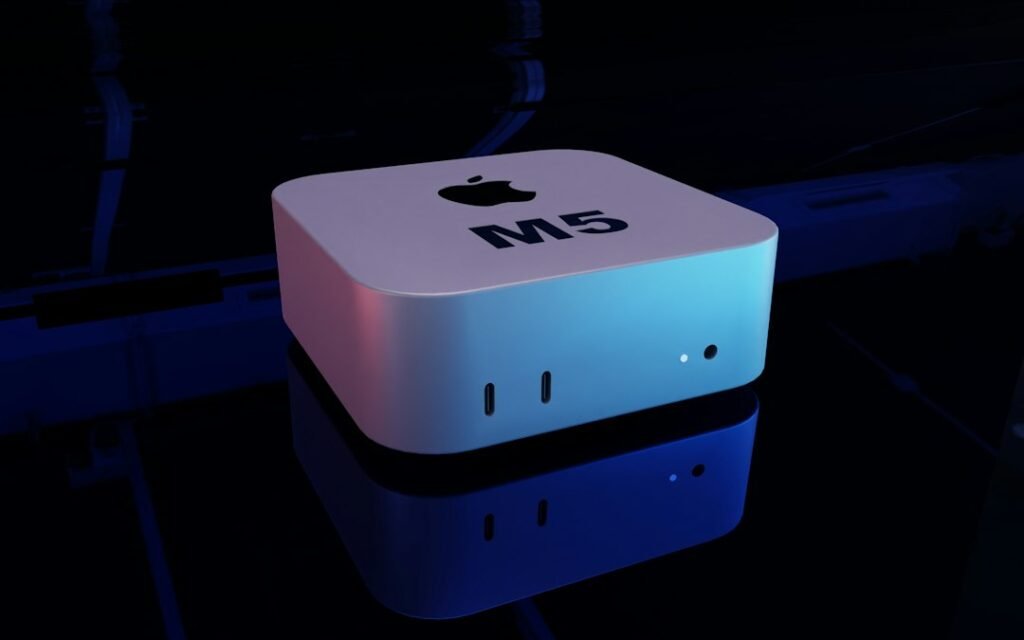
- Setting Up Apple TV IPTV Streaming in the UK
- Step 1: Preparing Your Hardware and UK Network
- Step 2: Installing a Dedicated Player App on Apple TV
- Step 3: Loading Your Authorised Provider Playlist
- Step 4: Configuring Frame Rate and Dynamic Range Matching
- Step 5: Fine-Tuning Audio and Buffer Settings
- Legal Compliance and Safe Streaming in the UK
- Optimising Your Apple TV Setup
Setting Up Apple TV IPTV Streaming in the UK
Apple TV box hardware usually sits in the premium bracket of UK streaming devices. While the Amazon Firestick dominates the budget market, the Apple TV 4K offers faster processing, clean interface navigation, and zero built-in home screen advertisements. Getting an legal Apple TV IPTV setup working takes a slightly different route than Android-based TV boxes, primarily due to AppletvOS app store rules.
This detailed step-by-step guide covers everything required to configure your Apple TV 4K or HD box for legal television streaming over internet protocol in the UK. We will look at player selection, network adjustments, playlist imports, and audio-video calibration for optimal playback quality.
Step 1: Preparing Your Hardware and UK Network
Before touching any software settings, stable physical connections are essential. Live streams require steady continuous throughput rather than intermittent burst speeds.
If your router sits near your entertainment cabinet, plug an Ethernet cable directly into the back of your Apple TV 4K. Wired connections eliminate wireless interference, local congestion, and fluctuating latency. If you must use Wi-Fi, ensure your device connects to the 5 GHz band of your router rather than the slower 2.4 GHz network.
UK internet service providers frequently employ smart management tools that interfere with real-time video feeds. To verify your home network setup can handle live feeds without dropouts, read our overview on UK internet speeds and streaming myths.
Step 2: Installing a Dedicated Player App on Apple TV
Apple TV hardware does not come with a built-in media list reader. You need a third-party playback app from the official tvOS App Store. Unlike Android devices, Apple does not allow side-loading apps from external files, so every client must come directly from Apple’s app store environment.
Open the App Store icon on your Apple TV home screen and search for these established, fully legal player options:
- iPlayTV: Designed specifically for Apple TV interface layouts. Excellent Electronic Program Guide (EPG) grid layout and smooth channel switching.
- GSE Smart IPTV: Highly configurable, supporting various playlist formats and external audio tracks.
- Smarters Player Lite: A stripped-back, stable client that offers clean category browsing for live broadcasts and video-on-demand content.
Download your chosen application directly onto your system. Free versions often contain full functionality with optional in-app purchases for advanced interface customisation.
Step 3: Loading Your Authorised Provider Playlist
Once your app launches, it will request your playlist details. Legitimate provider services issue these connection details after you register for an account.
You generally receive one of two formats to input into your player application:
Option A: M3U URL Link
An M3U file link is a web address pointing directly to your stream directory. Instead of typing a long URL using the Apple Siri Remote, open the Remote app on an iPhone or iPad connected to the same Wi-Fi network. Paste the link string directly into the app text box.
Option B: Xtream Codes API Credentials
Many applications prefer this option because it organises categories cleanly. You will enter three pieces of information:
- Server URL (e.g., http://provider-address.com:8080)
- Your account username
- Your account password
After entering the details, select Add User or Import Playlist. The app will parse the server data and load the live channel grid along with the program guide information.
Step 4: Configuring Frame Rate and Dynamic Range Matching
UK television broadcasts use a standard refresh rate of 50 Hz (50 frames per second). Most standard streaming media boxes output 60 Hz by default to match international video standards. This mismatch causes a subtle stuttering effect, particularly during fast-moving sports broadcasts like football or rugby.
Apple TV handles refresh rate switching better than almost any other box on the market through native system-level matching tools.
To enable native frame rate matching:
- Open the main Settings app on your Apple TV.
- Navigate to Video and Audio.
- Select Match Content.
- Turn on both Match Dynamic Range and Match Frame Rate.
When configured, your Apple TV automatically switches its output to 50 Hz whenever you open a UK live channel broadcast, resulting in butter-smooth pan shots and crisp motion. For more technical background on stream delays, explore our analysis of live stream latency compared to cable and satellite.
Step 5: Fine-Tuning Audio and Buffer Settings
If you experience brief pauses or continuous spinning icons while viewing channels on your Apple TV IPTV app, tweaking the internal buffer size in the app settings usually fixes the problem.
Open the settings page inside your chosen playback app (such as iPlayTV or GSE) and locate the playback or stream settings menu:
- Buffer Size: Increase the default playback buffer from 0 or 1 second up to 3 to 5 seconds. This creates a safety cushion of video data in your system memory, absorbing minor home network speed dips.
- Decoder Selection: Switch between Hardware (VLC / AVPlayer) and Software decoders if a specific channel drops frames or loses audio sync. Apple devices perform best using hardware decoding via the native AVPlayer engine.
If you face continuous buffering problems despite having high internet speeds, review our guide on resolving stream buffering issues for additional router and connection fixes.
Legal Compliance and Safe Streaming in the UK
When setting up television services over internet protocols in the United Kingdom, keeping your installation safe and legal is paramount. Using official apps and subscribed content services guarantees uninterrupted access and keeps your personal data secure.
Unauthorised third-party streams sold via social media channels often harvest user credentials, run on unreliable infrastructure, and pose significant cyber risks. Furthermore, UK copyright law and enforcement bodies actively target illegitimate feed providers. You can read our detailed guide on UK broadcasting laws, rights, and legal stream safety to ensure your setup remains fully compliant.
Optimising Your Apple TV Setup
With hardware matching enabled, direct Ethernet connectivity, and a well-configured media player app, your Apple TV box delivers standard-setting picture performance and instant channel response. Make sure to regularly update your chosen playback app through the App Store to maintain compatibility with new tvOS updates and modern server protocols.
For additional details on supported hardware, user guides, or resolving subscription questions, visit our Installation Guide or check our full Help Center. You can also view our high-quality Channel List to see available licensed content options for your home entertainment system.